The Editor & Media Studio
A distraction-free craftsman studio for writing, annotating media, embedding rich documents, and presenting your thinking.
Nowted's editor combines the simplicity of clean Markdown with the power of modern interactive media embeds. Whether you are drafting a private journal, crafting technical specifications, or cataloging book highlights, the editor gets out of the way.
 Nowted•The Multimedia Markdown Studio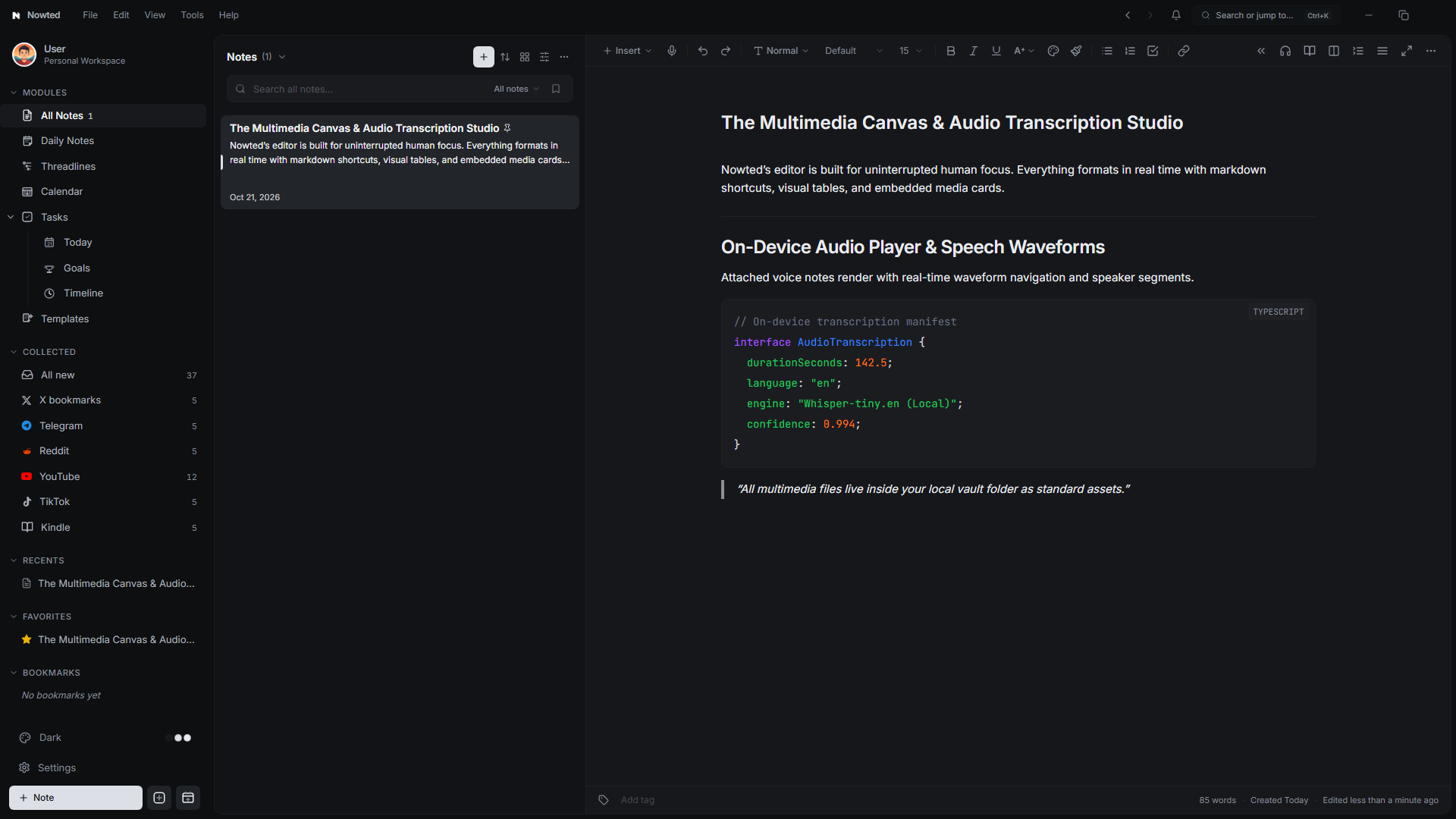
1. Distraction-Free Writing & Slash Commands
- Slash Commands (/): Type / anywhere on a blank line to summon headers, tables, callout blocks, math equations ($LaTeX$), code snippets with syntax highlighting, and media embeds without lifting your hands from the keys.
- Bubble Formatting Menu: Highlight any phrase to summon an inline toolbar for formatting, highlighting, adding external URLs, or creating internal bidirectional links.
- Floating Table of Contents: For long documents, an automatic outline icon hovers subtly on the right edge, letting you jump between sections instantly.
2. Multi-Tab Workspace & Side-by-Side Split View
Deep cognitive work demands holding multiple thoughts in play simultaneously. Nowted provides a browser-grade tabbed workspace alongside native side-by-side split editing so you never lose your train of thought:
Nowted•Multi-Tab Workspace & Side-by-Side Split View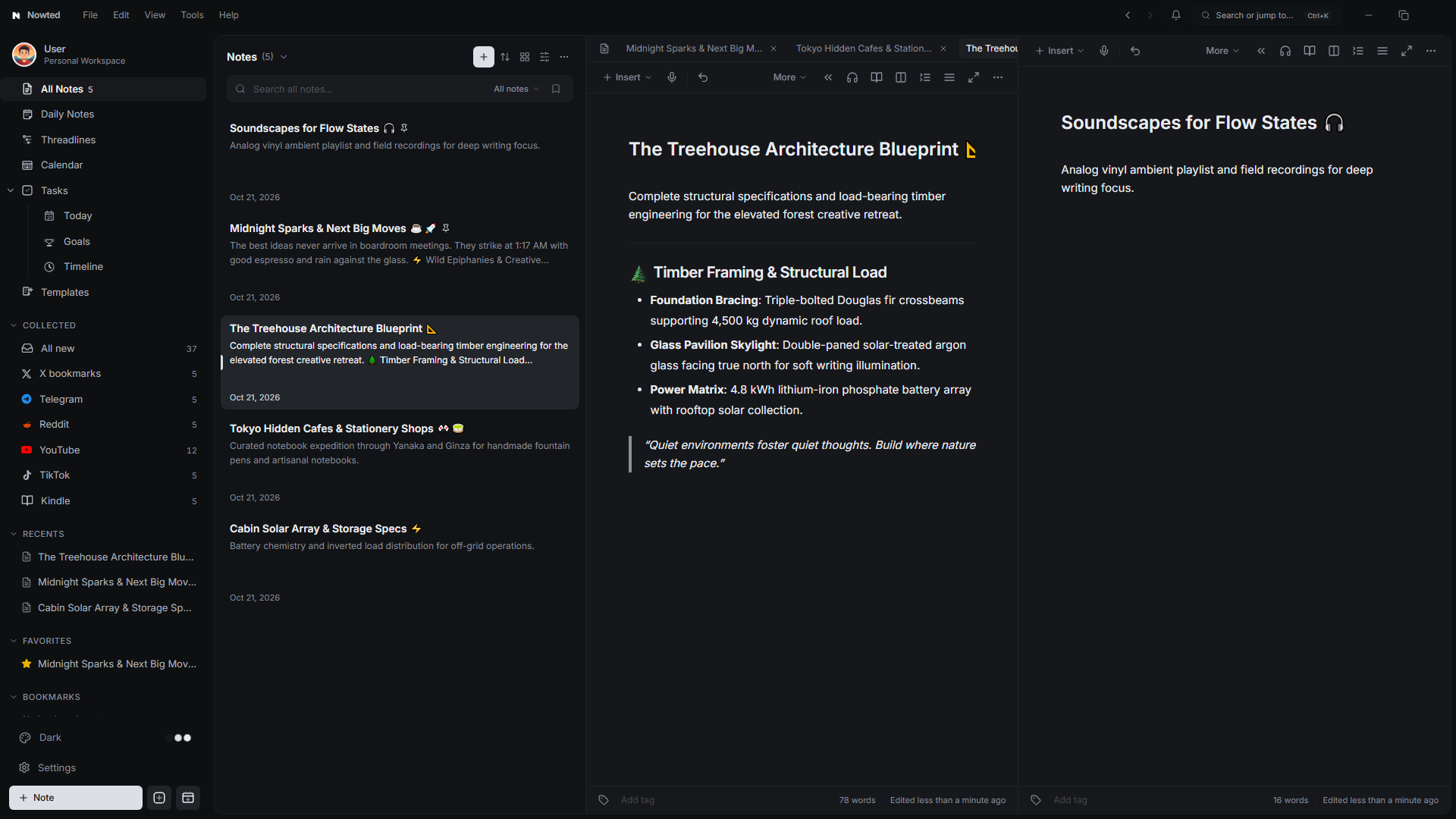
Independent Multi-Tab Sessions
- Open Notes in Several Tabs: Open as many notes as you need in distinct tabs across your workspace. Switch between ongoing thoughts effortlessly with Ctrl + Tab / Ctrl + Shift + Tab or direct clicks.
- Pin Vital References: Pin your daily compass note, active project roadmap, or API specifications to the left edge of your tab bar. Pinned tabs remain permanently anchored and can never be closed by accident.
- Speedy Tab Controls: Middle-click any tab header or press Ctrl + W to close it instantly. Right-click any tab to close other tabs or close all tabs to the right.
Side-by-Side Split View (Ctrl + Shift + V)
- Simultaneous Dual-Note Editing: Press Ctrl + Shift + V or click the Split View icon in the editor toolbar to divide your workspace into two fully functional editor panes.
- Reference & Write at the Same Time: Keep technical research, interview transcripts, or customer requirements open on the left pane while drafting your core architecture or proposal on the right pane.
- Dual Independent Tab Bars: Both the left and right split panes retain their own separate tab sessions. Switch between multiple research documents on the left while toggling draft iterations on the right.
- Fluid Pane Controls: Drag the center divider to allocate screen real estate dynamically, or click the Swap Panes icon to effortlessly flip the left and right notes.
Keep a customer interview transcript or project RFC pinned in your left pane while drafting your executive summary on the right. No Alt-Tab switching, no lost context, and no broken focus.
3. In-Note Image Annotation & Redaction
Images inside Nowted are never static pictures:
- Hover over any image inside your note and click the Annotate pencil icon.
- Draw precision arrows to highlight interface elements.
- Drop numbered step badges (
1,2,3) to create instant tutorials. - Use the Privacy Redaction Blur tool to pixelate and scrub sensitive passwords, bank balances, or personal customer details before sharing.
- Crop and resize images smoothly using draggable boundary handles.
Create software walkthroughs in seconds: snap a screenshot, drop 3 numbered badges on key buttons, blur the user email, and save it directly into your project document.
4. In-Note Audio Recording & Waveform Playback
Record voice memos directly inside any note:
- Click the microphone icon on the editor toolbar to initiate high-fidelity audio capture.
- A live audio waveform visualizes your voice levels in real time.
- Stop the recording to embed an interactive Audio Player with scrubber, playback speed controls (
1x,1.5x,2x), and an automatic Whisper AI transcript panel.
5. Deep PDF & Document Studio
Reading and referencing external documents inside your workspace is completely native:
- Embedded PDF & DOCX Viewers: Drag any PDF or Word document directly into your note to view it inline.
- In-Document Keyword Search: Search across attached PDFs with instant highlight jumping to the exact page and sentence matching your query.
- Side-by-Side Reference: View your reference PDF on one side while taking structured notes on the other.
6. Book Highlight Scanner & Presentation Mode
Physical Book Highlight Scanner
Love reading physical books?
- Use the Book Highlight Scanner to capture printed pages with your camera.
- On-device optical character recognition extracts your highlighted passages and saves them as clean, editable quotes tagged with the book title and author.
One-Click Presentation Mode
Turn any note into a clean, modern slideshow:
- Click the note options menu and select Presentation Mode.
- Every heading and section transforms into full-screen presentation slides with keyboard navigation (
←/→). - Deliver impromptu presentations to clients or teammates without exporting to presentation software.
7. Interactive Knowledge Graph & Templates
Bidirectional Linking & Graph View
Type [[ anywhere to link to another note or task. An interactive 2D Knowledge Graph visualizes how your ideas, projects, and research connect across your entire vault.
Curated Template Gallery
Never start from a blank canvas. Access a rich library of pre-built templates:
- Executive Weekly Review
- Technical Architecture RFC
- Project Launch Master Plan
- Meeting Minutes & Action Tracker
- Personal Retrospective Log
Was this guide helpful?
Your feedback helps us continuously refine the documentation.